Approve a mock email
See the approval workflow without sending an email: ask Claude to use the repository's mock sender, inspect the guarantees, and approve the request. Proofs, approval decisions and execution receipts are real; the sender's implementation does nothing.
The whole tutorial, start to finish. Time spent waiting for the agent is sped up.
Open the tutorial
No repository checkout is needed. Install uv, Node.js 22 or later, and an authenticated Claude Code installation, then:
When running the development checkout before this feature is released, use
uv run clauz3 ui --tutorial instead. The command above requires a release
containing the bundled tutorial.
ClauZ3 opens a local browser workspace with chat and approvals together.
The tutorial needs your agent's usual authentication, but no email account,
Gmail setup, or email credentials. Restricted Pi is also supported with
clauz3 ui pi --tutorial; tutorials do not run with --unrestricted.
You can also run uvx clauz3 ui from your own project and click Try the email
approvals tutorial on the new-conversation screen, or choose Tutorials →
Email approvals in the top-left workspace menu. Opening the tutorial leaves that project's libraries and settings alone.
The tutorial installs its small bundled mock email library into a persistent,
managed workspace under ~/.local/share/clauz3/tutorials/email/ (or
$CLAUZ3_HOME/tutorials/email/). The library is selected for new conversations.
The composer chip and library picker show a purple 🧪 Mock badge; Mixed
means a library contains both declared mock and unmarked effects. These labels
record the author's declarations; they do not enforce isolation.
The bundled sender does nothing. You can inspect its
tools/email/trusted/effects.py through Files.
The agent can discover selected tools and submit programs for proof and approval. It cannot directly send email or install another trusted library.
Ask for an email
Click Send a mock email, or paste this into chat:
Use the installed email library to send bob@example.com the message "Hello from ClauZ3". Guarantee that only Bob can be emailed, there is at most one email, and recipients are unique. Submit it for approval.
The agent writes a small program. Watch its run progress through proof to Pending user decision. An approval card appears in the conversation.
Check for these guarantees in the approval card:
email.only(addresses=['bob@example.com'])email.at_most(count=1)email.unique_recipients()
The card resolves the agent's import aliases and names each parameter. It also
shows the description and full Python symbol, such as
tools.email.trusted.contracts.at_most. Expand Source and documentation to
see the original expression, source snapshot, fingerprints, and full docstring.
Expand Show source or Proofs if you want to inspect the details. If one of the requested guarantees is missing, choose Need more info and ask the agent to include it before approving.
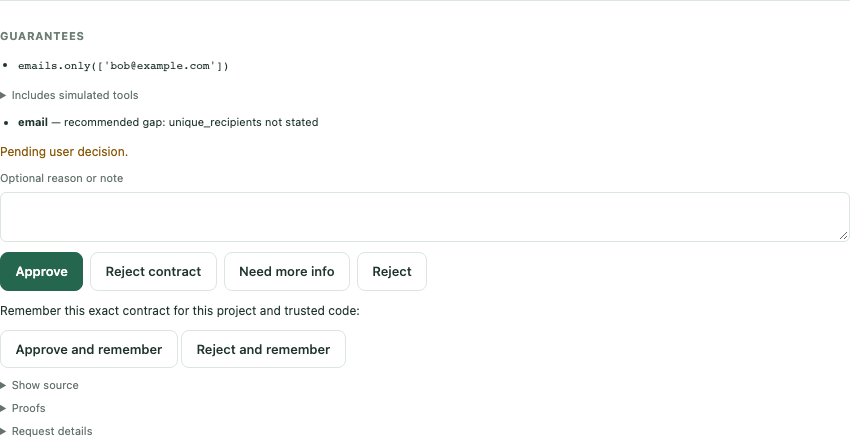
An example card. This one states only the recipient guarantee, so it also
flags the missing recommended unique_recipients guarantee. Your card should
include all three guarantees requested above.
Approve and see the result
Click Approve. The runner verifies the signed approval and calls the mock sender. The agent should report completion. No email arrives: the implementation is a no-op. There is currently no simulated outbox to inspect.
To try the other path, request another mock email and click Reject. The program is not executed, and the decision is returned to the agent.
Approve and remember saves a decision for matching future contracts in this project with the same trusted code. It does not approve every future email request. The Approval profile & history link lets you inspect and remove remembered rules. See approval profiles for matching and storage details.
Reset, leave, or continue
Use the top-left workspace picker to return to your project or open another existing folder by absolute path. Recent folders are remembered across launches. When work is active, switching offers Stop and switch; the previous conversation's history is saved. Only one workspace runs in each UI process.
Reset tutorial asks for confirmation, stops active work, and replaces the tutorial's files, conversations, and remembered approval rules. Other workspaces are unaffected. The working copy survives restarts until you reset it; package updates do not overwrite an existing copy. Reset picks up the current template.
Stop ends the active agent and workers. Press Ctrl-C in the terminal that
launched clauz3 ui to stop the service. Chat history survives service restarts.
Next, try real file work, where approval produces a file you can inspect. For how proofs relate to trusted implementations, read Concepts and mock declarations. An enforced demo mode with a simulated outbox is tracked separately in issue #320.
Prefer a terminal agent?
Advanced users can still use the full developer example in a repository
checkout. From examples/email, run this instead of clauz3 ui:
Then:
Enter the same prompt in Claude's terminal. Approvals appear in the browser opened by ClauZ3. Exiting Claude stops its approval service. The printed approver URL grants access to approval decisions; keep it private.